Claudexia Desktop
Connect your AI tools to Claudexia
The app sets up Claude Code, Codex, and other supported tools, then tests the connection. It also provides instructions for manual setup.
Version 0.1.10Verify checksum
How it works
Download and sign in
Install the app and sign in to your Claudexia account in your browser.
Pick a tool
Open the list in the app and choose the tool you use.
Click Connect
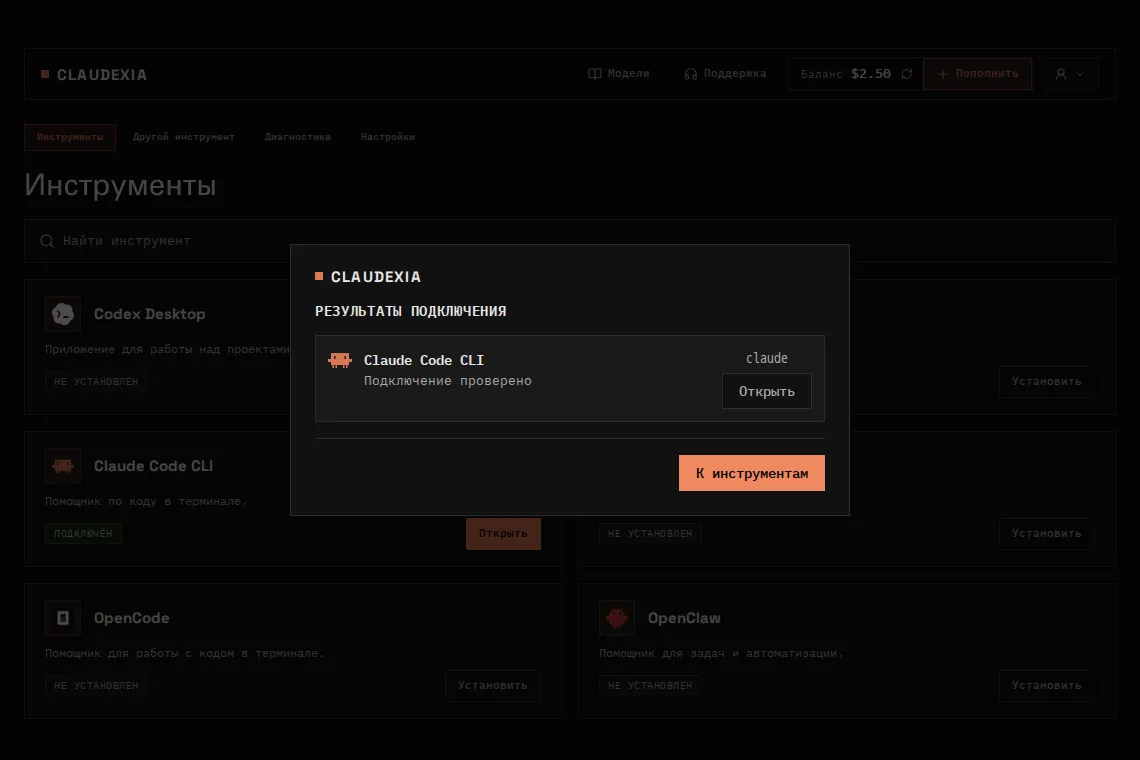
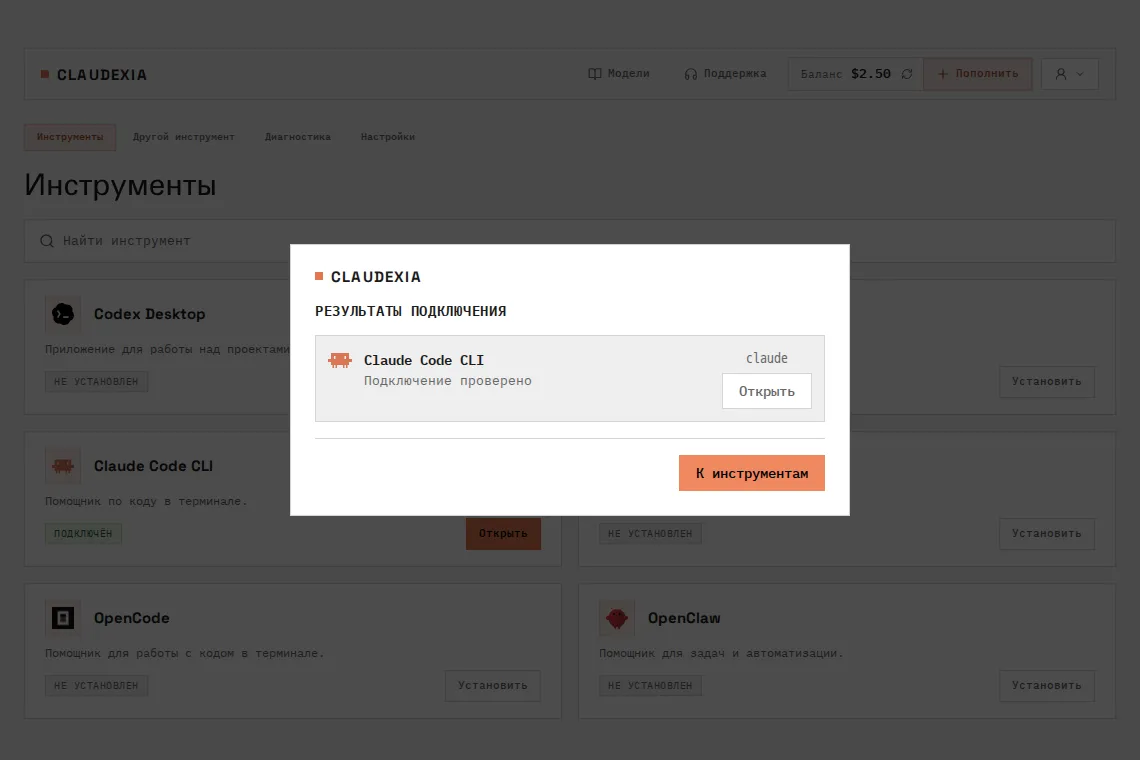
The app backs up your old settings, connects the API, and shows the test result.
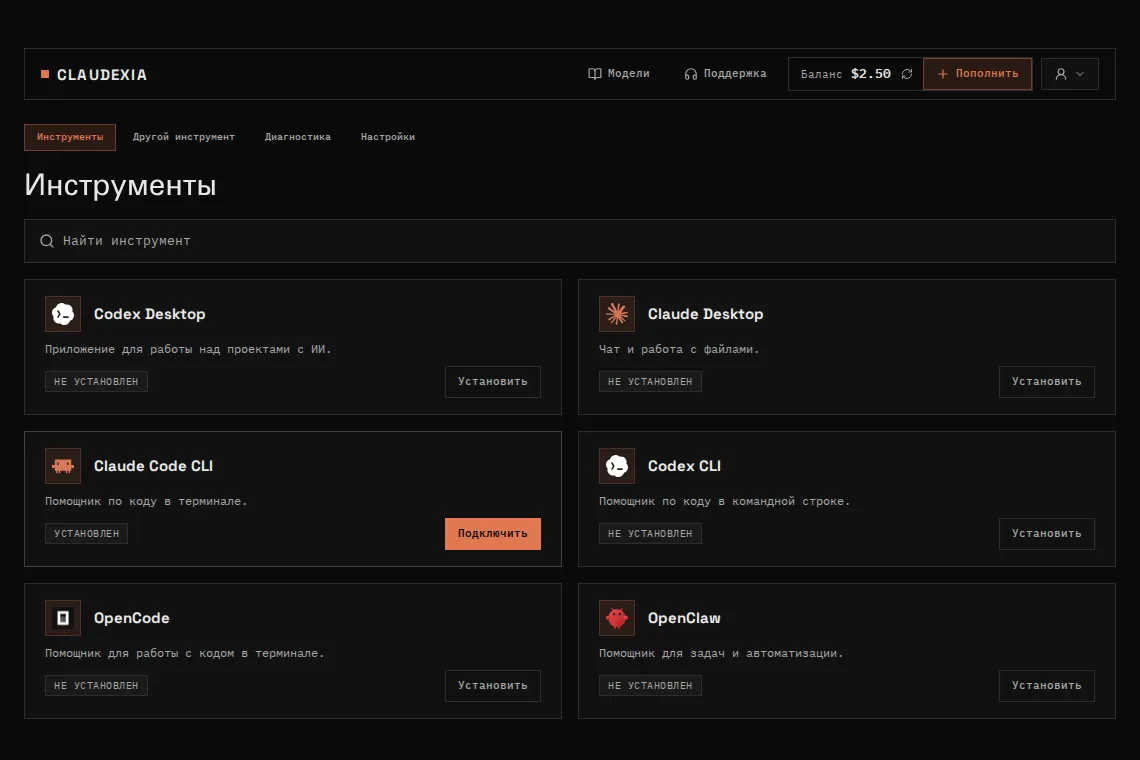
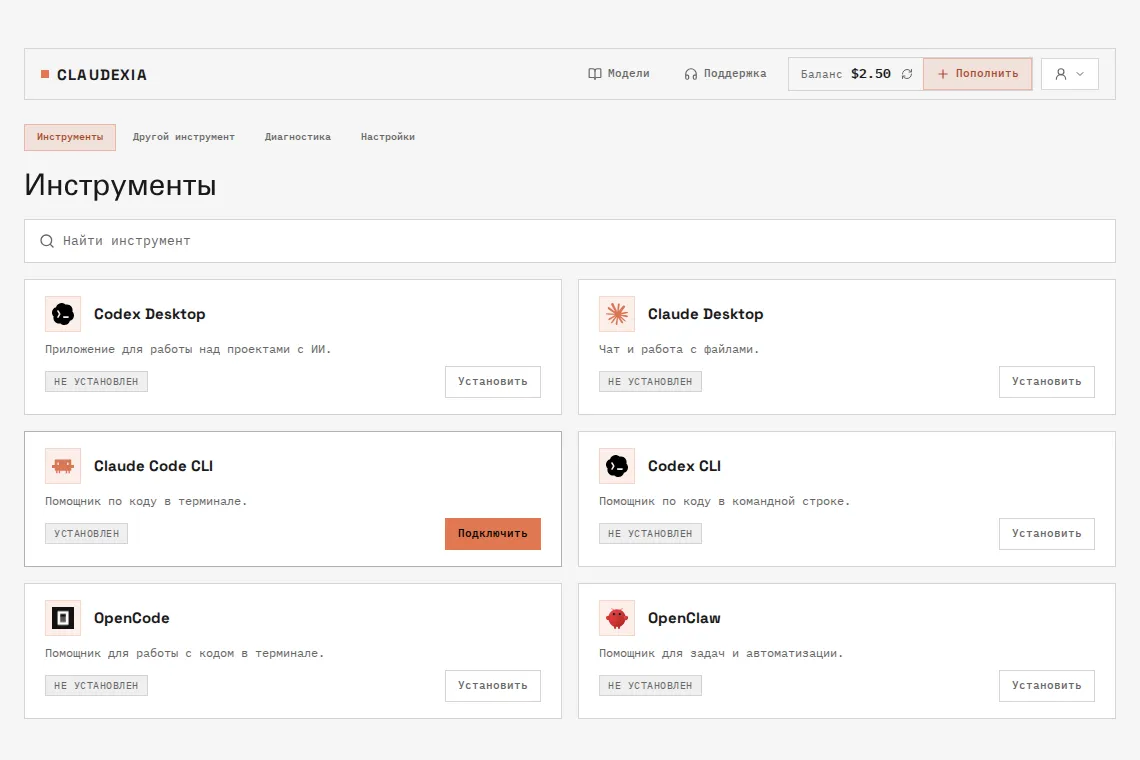
What it looks like
The screenshots show sample data.
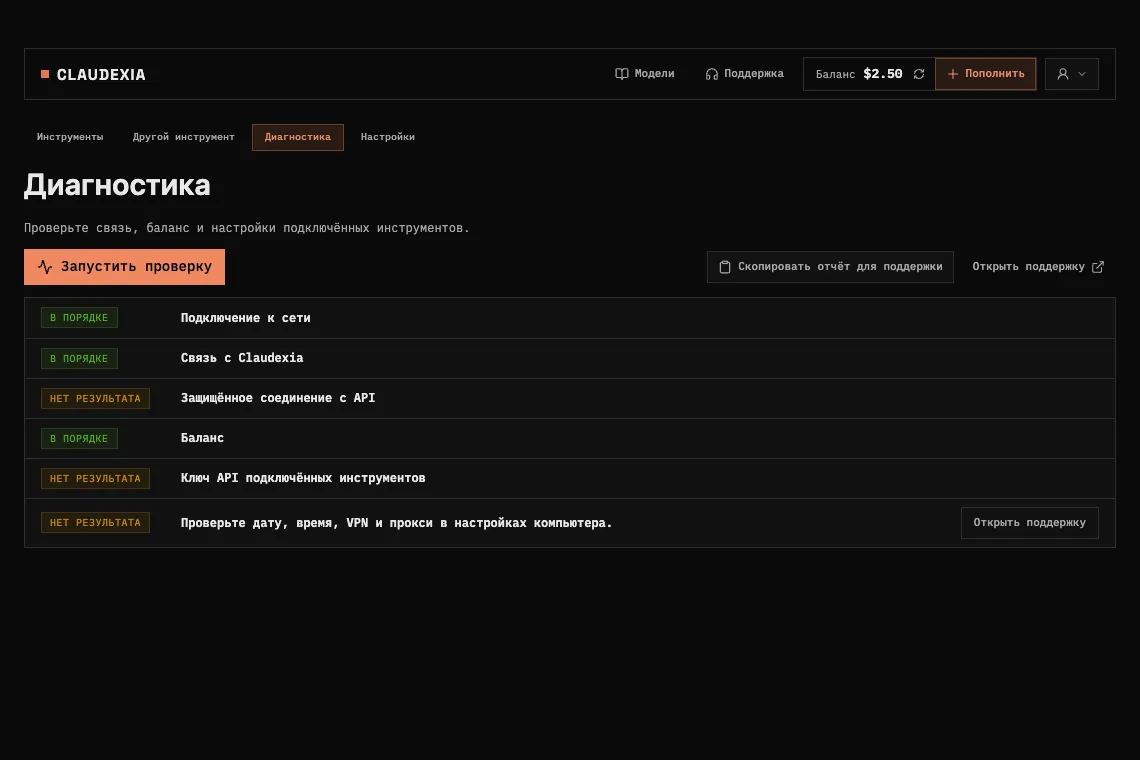
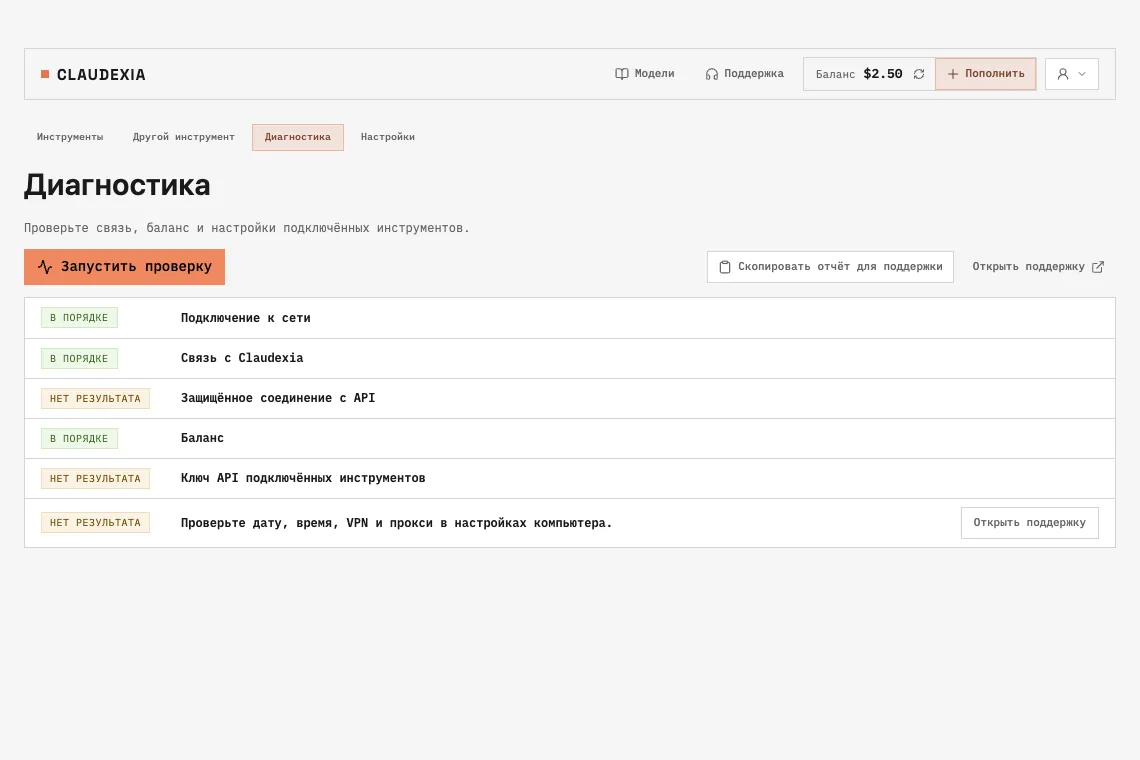
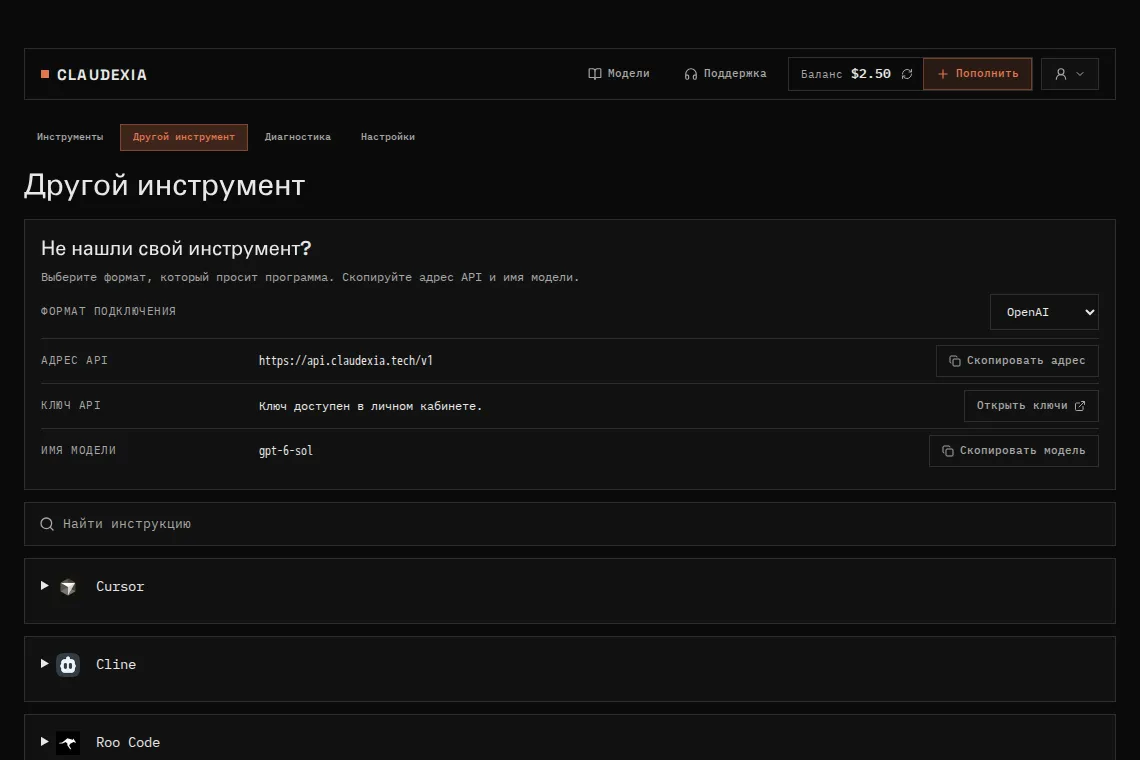
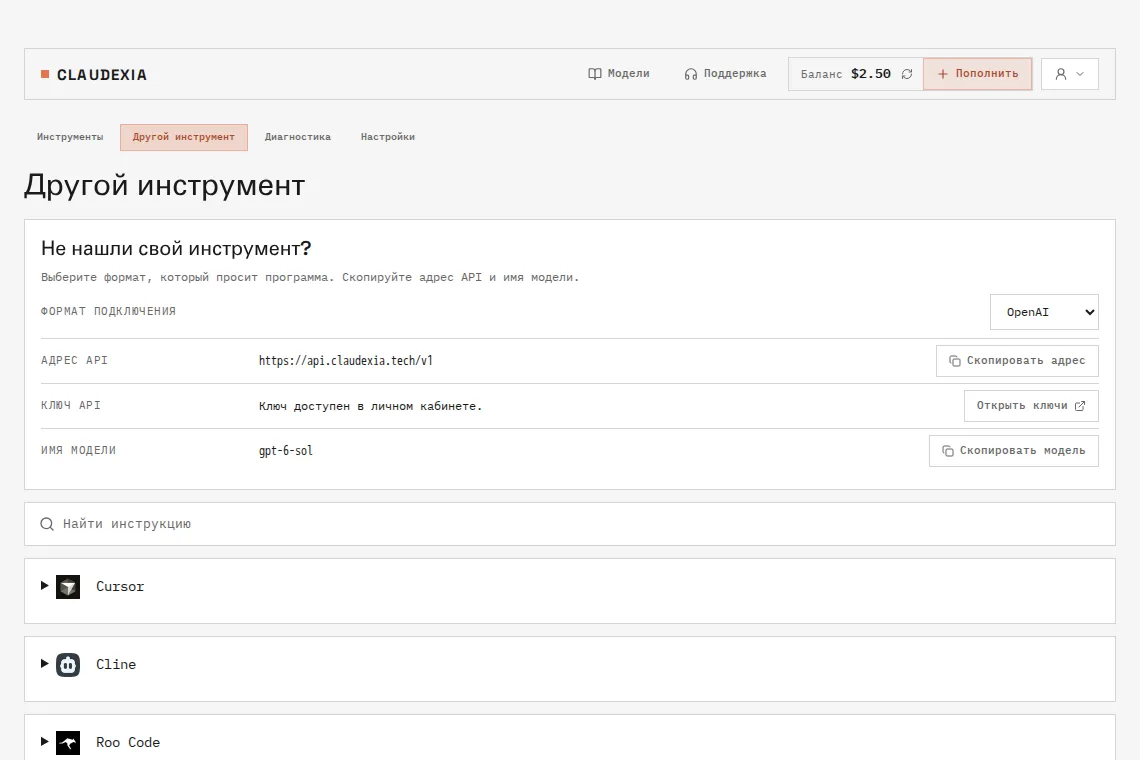

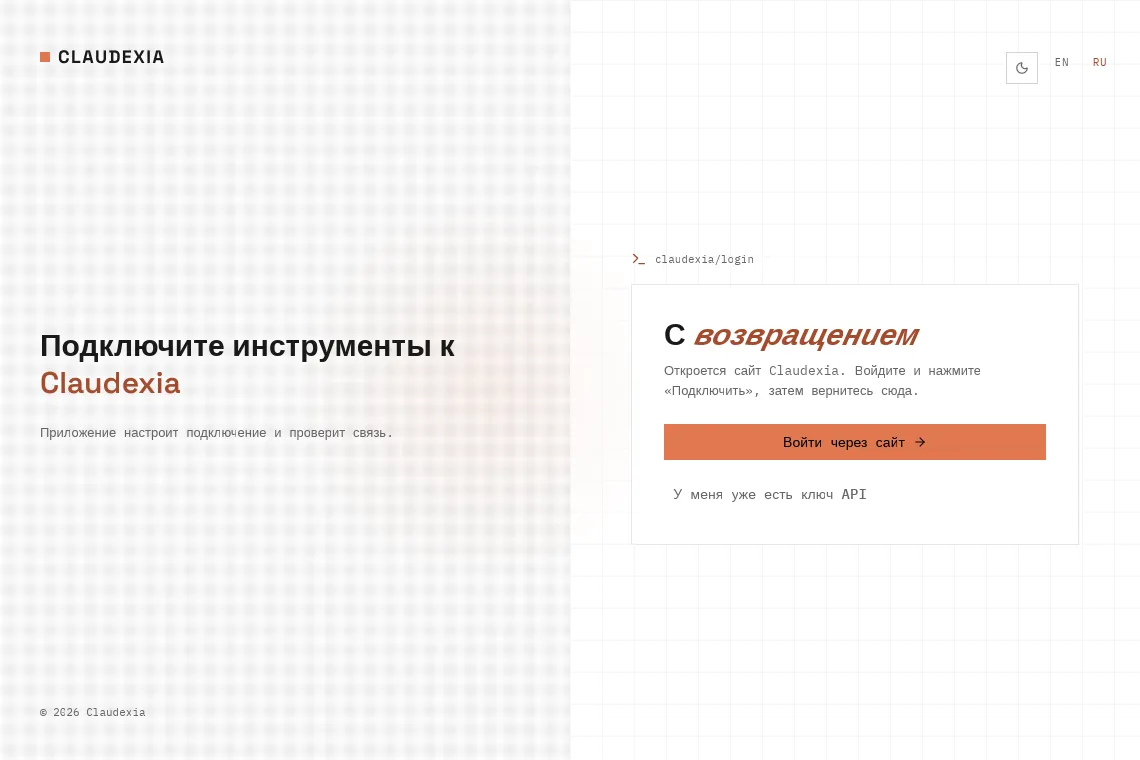
What the app does
Finds your tools
See which supported tools are already on your computer.
Sets up the connection
The app fills in the API address and key for supported tools.
Tests the connection
Send a test request and see whether the model replies.
Restores your settings
The app makes a backup before connecting. Restore it with one click.
Shows your balance and models
Check the available models and your Claudexia balance in the app.
Stores the key on your computer
Your API key is created on the Claudexia website. The app keeps it in the system credential store and writes it to the tool’s configuration file during automatic setup. The app keeps the key hidden.
Tells you about updates
The app lets you know when a new version is available. Download it from this page.
Guides you through manual setup
See where to enter the API address and key. Copy the address in the app and open the Claudexia website to get your key.
Works with your tools
Automatic setup
 Claude Code
 Claude Desktop
 Codex CLI
- Codex Desktop
 OpenCode
 OpenClaw
 Aider
 Continue CLI
 Qwen Code
 Kilo CLI
Guided setup
If your tool is missing from the list, use the general instructions for apps that accept a custom API address.
- OpenCode
- Claude Desktop (GUI)
 Cursor
 Cline
- Kilo Code
 VS Code · GitHub Copilot
 JetBrains AI Assistant
 Xcode
- Chatbox
 Cherry Studio
 LobeHub
 Open WebUI
 LibreChat
 n8n
 Dify
 Raycast
 Obsidian Copilot
 Zed
 Warp
 Amp
 Goose
- Factory Droid
 Kimi Code CLI
How to install
Apple has not notarized the app yet. macOS may ask you to approve the first launch.
- Download the DMG for your chip, open it, and drag Claudexia into Applications. To identify your chip, choose Apple menu → About This Mac.
- Open Claudexia from Applications. On older versions of macOS, if you see a warning, right-click the app and choose Open.
- If that fails, try opening the app once. Then go to System Settings → Privacy & Security and choose Open Anyway.
If the button is missing and the file matches the published SHA-256, run this command in Terminal for this copy of the app.
xattr -dr com.apple.quarantine /Applications/Claudexia.appTo uninstall, quit Claudexia and move it from Applications to the Trash.
How to verify SHA-256
Open Terminal, replace the sample path with the path to your DMG, and compare the output to the SHA-256 below. If the values differ, download the file again.
shasum -a 256 -- /path/to/installer.dmgThe installer is unsigned for now. Microsoft Defender SmartScreen may show a warning when you open it.
- Download the EXE installer and verify its SHA-256. Open the file if the checksum matches.
- If SmartScreen appears, choose More info → Run anyway. This option may be unavailable on a managed computer.
- Follow the installer prompts. By default, the app installs for your user in the Claudexia folder under %LOCALAPPDATA%. Open it from the Start menu.
To uninstall, open Settings → Apps, find Claudexia in the list, and select Uninstall.
How to verify SHA-256
Open PowerShell, replace the sample path with the path to your EXE, and compare the Hash value to the SHA-256 below. Letter case can differ.
Get-FileHash -Algorithm SHA256 -LiteralPath 'C:\path\to\installer.exe'First launch and connection guide
All downloads
SHA-256 checksums
- macOS · Apple silicon
c43db0ad8060ffb44551b26e883d990f1fe3a2edad3e8b6e8d4ae1cd7c86eefa- macOS · Intel
694afc839177bc2d36a39e6a04bda35b1ed63fc033c0aab66ab3ba1aadd739d6- Windows · x64
c36dcddb0f5afe4e3293fa0a78f60aadcfc7212d5a91a766931a5a035dcd6b38
Before you install
System requirements
- macOS 12.0+ on Apple silicon or Intel.
- Windows 10.0.17763 or later, x64.
- The installer downloads WebView2 if you need it. This requires an internet connection.
What the app stores
Settings and backups stay on your computer. The app keeps its API key in the system credential store.
The app contacts claudexia.tech and api.claudexia.tech for sign-in, API checks, balance, models, and updates.
What’s new
0.1.10 ·
Fixes and improvements.
Frequently asked questions
Yes. Sign in to Claudexia so the app can connect your API key and show your balance.
The app is free. You pay the usual Claudexia rates for model requests.
Download the installer from this page and compare its SHA-256 to the published value. macOS may warn that the app is not notarized. Windows may warn that the installer is unsigned.
The app lets you know when a new version is available. Download it from this page.
Check your balance, restart the tool, and run the connection check again. If it still fails, send the error text to support.
First, use Claudexia Desktop to restore the old settings for connected tools. On a Mac, move the app to the Trash. On Windows, uninstall it from the app list in Settings.
You can choose Russian or English.
No. Claudexia makes the app to connect tools to the Claudexia API.
Message Claudexia support with your operating system, app version, and what happened. Keep your API key and password private.
Message support on TelegramConnect your first tool
Download the app for your computer and sign in to Claudexia.