CC Switch setup
CC Switch is a free app that connects Claude Code and Codex to other providers through a form. It writes the config files for you. Use it if you would rather not edit config files by hand.
What you need
- CC Switch. On macOS install it with Homebrew using the command below. For Windows and Linux download the installer from the releases page: the
.msifile for Windows, or.deb,.rpmor.AppImagefor Linux. This guide is written for version 4.0. - Claude Code or Codex installed. See the Claude Code and Codex guides.
- A Claudexia key. Create one in the dashboard under API keys. Keys start with
sk_cdx_. No account yet? Sign up. - Money on your balance. Top up by card or with crypto, from $1. This helps when payments to the original provider do not go through in your country. Payment options are listed on Pricing.
brew install --cask cc-switchSteps
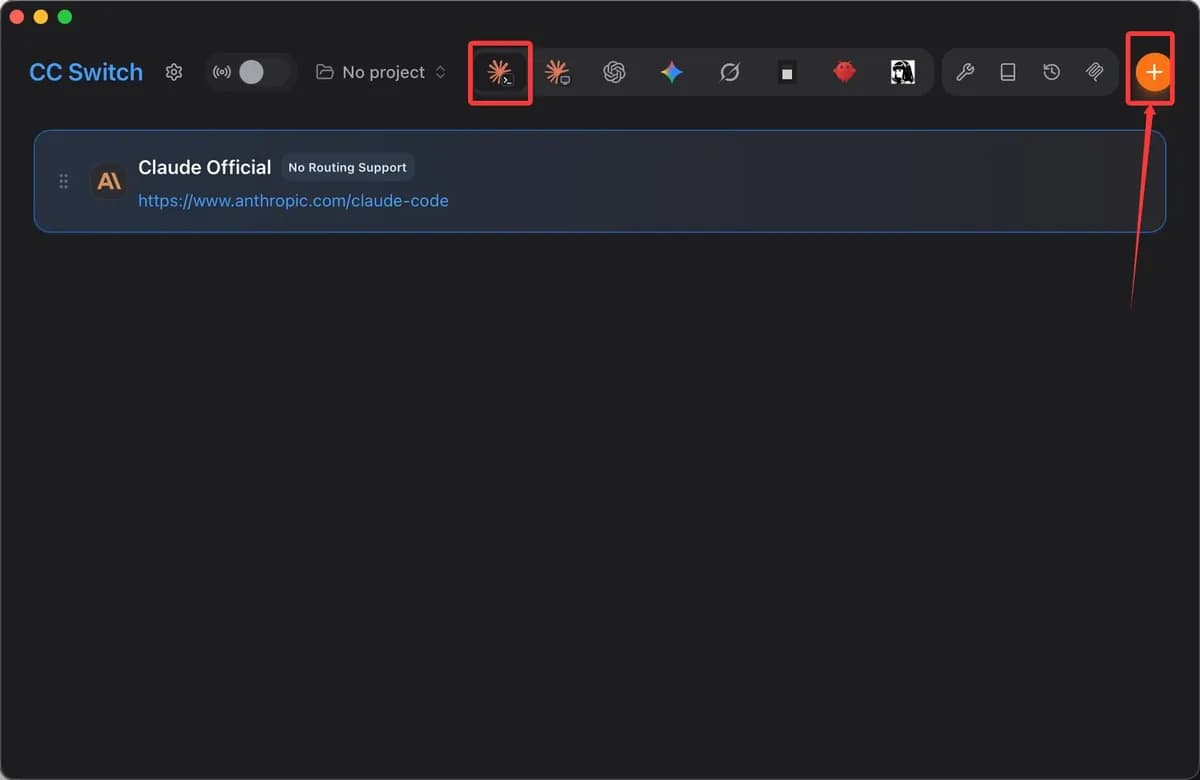
- Open CC Switch and pick the Claude Code icon at the top (the first one in the row).
- Click the orange "+" button on the right.
- Choose Custom Configuration and fill in the fields:
| Name | Claudexia |
| API Key | sk_cdx_YOUR_KEY |
| Endpoint URL | https://api.claudexia.tech |
| Model, if the form asks for one | claude-sonnet-5 |
- Click Add, then pick the Claudexia provider in the list to switch to it.
- Quit Claude Code if it was open and start it again: it reads settings at startup.
For Claude Code the address has no /v1; for Codex it ends in /v1. Do not add a trailing slash.
Codex
Pick the Codex icon at the top, click "+", choose Custom Configuration and fill in the fields:
| Name | Claudexia |
| API Key | sk_cdx_YOUR_KEY |
| Endpoint URL | https://api.claudexia.tech/v1 |
| Model, if the form asks for one | gpt-6-sol |
CC Switch writes the address and key to ~/.codex/config.toml. Quit and reopen Codex afterwards.
Check that it works
Open a new terminal and run the command. It should answer OK:
claude -p "Reply with OK"Before its first write, CC Switch saves the original config files to ~/.cc-switch/backups/. To go back to an Anthropic or OpenAI subscription, pick the official provider in the list.
Which model to pick
- For everyday work:
claude-sonnet-5. It is the default in our examples and is in the Premium channel. The Cheap channel hasclaude-opus-5-5instead. - For hard tasks and large projects:
claude-opus-5-5. It costs more than Sonnet 5. - To spend less, if the tool accepts non-Claude models:
deepseek-v4.1-flashorgpt-6-luna. Both cost several times less than Sonnet 5 and work in the Premium channel only.
Prices and the full list are in the model catalog. GPT, DeepSeek, Gemini and other non-Claude models work only with Premium channel keys: see Channels.
Common errors
Click an error to see what to do.
401: Invalid or missing API key
The tool sent a wrong key or no key at all. Copy the whole key from API keys: it starts with sk_cdx_ and has no spaces or line breaks. If the key was deleted or revoked, create a new one. Restart the tool after you change the key.
402: balance is empty
Your balance ran out. In the OpenAI format the error has the code insufficient_quota; in the Anthropic format it is HTTP status 402. Top up under Billing by card or with crypto, from $1. No settings need to change, just send the request again. When the balance is almost empty, requests run one at a time and you may get a 429 with the code low_balance. The code account_frozen means the account is suspended: contact support.
404: Not found or wrong address
The tool calls the wrong address. For this tool the address has no /v1: https://api.claudexia.tech. The tool adds /v1/messages itself. With /v1 in the field you get /v1/v1/messages and a 404. The address table is on Addresses and formats.
The tool does not see the key
Tools read their settings at startup. Quit the tool completely and open it again, and open a new terminal window. An environment variable set in one terminal window is not visible in another. Apps started from the Dock, the Start menu or a shortcut do not read ~/.zshrc or ~/.bashrc: for them, put the key in the tool settings.
Model not found
The model name must match the ID in the catalog exactly: claude-sonnet-5, not "Claude Sonnet 5". Only Claude Code understands the [1m] suffix; leave it out everywhere else.
403: model_not_in_channel
The model is not in your key channel. The Cheap channel serves Claude models only; Premium serves the whole catalog. Switch the model or the key channel: see Premium and Cheap channels.
Check the key without the tool
The command below sends one short request straight to Claudexia, without the tool. It tells you whether the problem is your key and balance or the tool settings. Replace sk_cdx_YOUR_KEY with your key. The request costs a fraction of a cent.
curl https://api.claudexia.tech/v1/chat/completions \
  -H "Authorization: Bearer sk_cdx_YOUR_KEY" \
  -H "Content-Type: application/json" \
-d '{"model": "claude-sonnet-5", "max_tokens": 16, "messages": [{"role": "user", "content": "Reply with OK"}]}'Invoke-RestMethod https://api.claudexia.tech/v1/chat/completions -Method Post `
-Headers @{ Authorization = 'Bearer sk_cdx_YOUR_KEY' } -ContentType 'application/json' `
-Body '{"model": "claude-sonnet-5", "max_tokens": 16, "messages": [{"role": "user", "content": "Reply with OK"}]}'You get a reply with a choices field: the key and balance are fine, so look at the tool settings. You get an error: the code and message point to the cause. They are covered above and in the error reference.